Interview answers, live on your phone
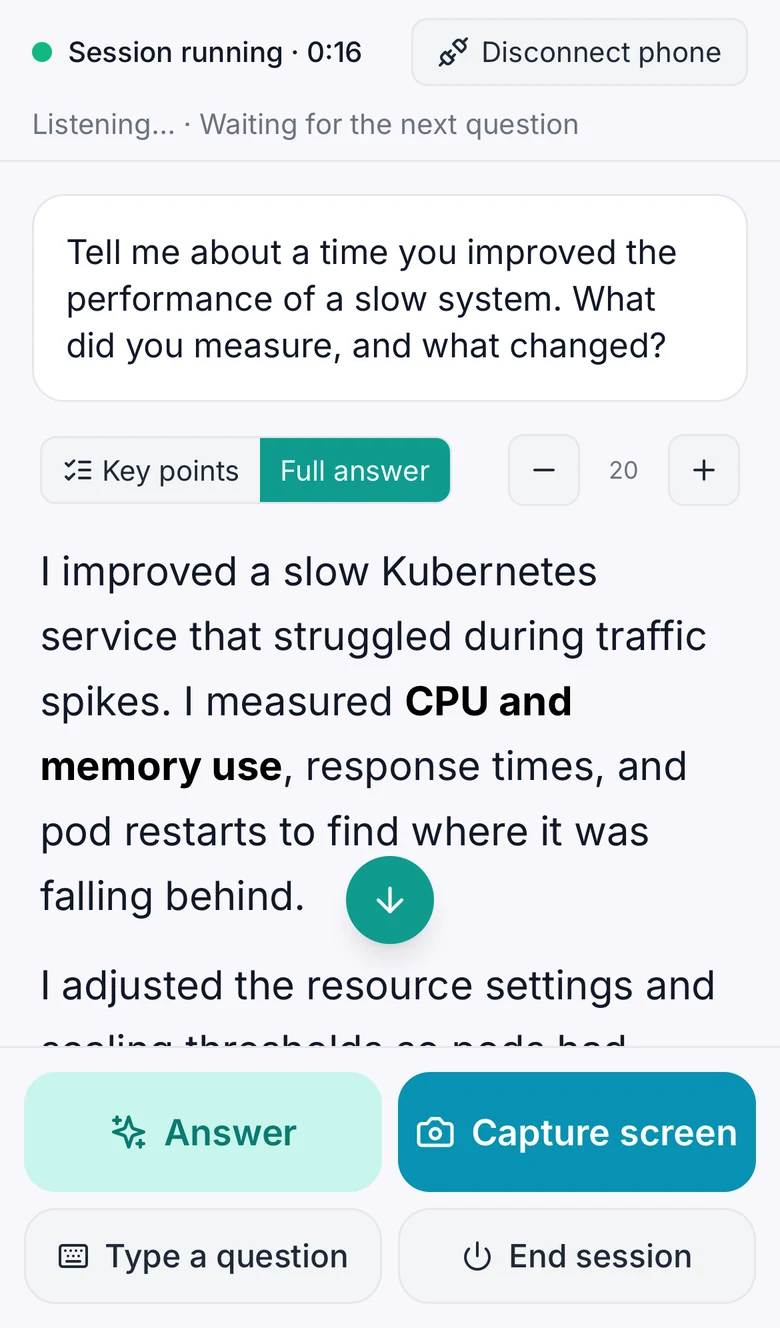
The HintCall desktop app listens to your interview and writes the answers. Phone view shows each answer on your phone in large text, with key points and one-tap follow-ups, and lets you start, answer and end the session from your hand. Pair it with a QR code; there is nothing to install on the phone.
Connected in three steps
- 1
Open Phone view on your laptop
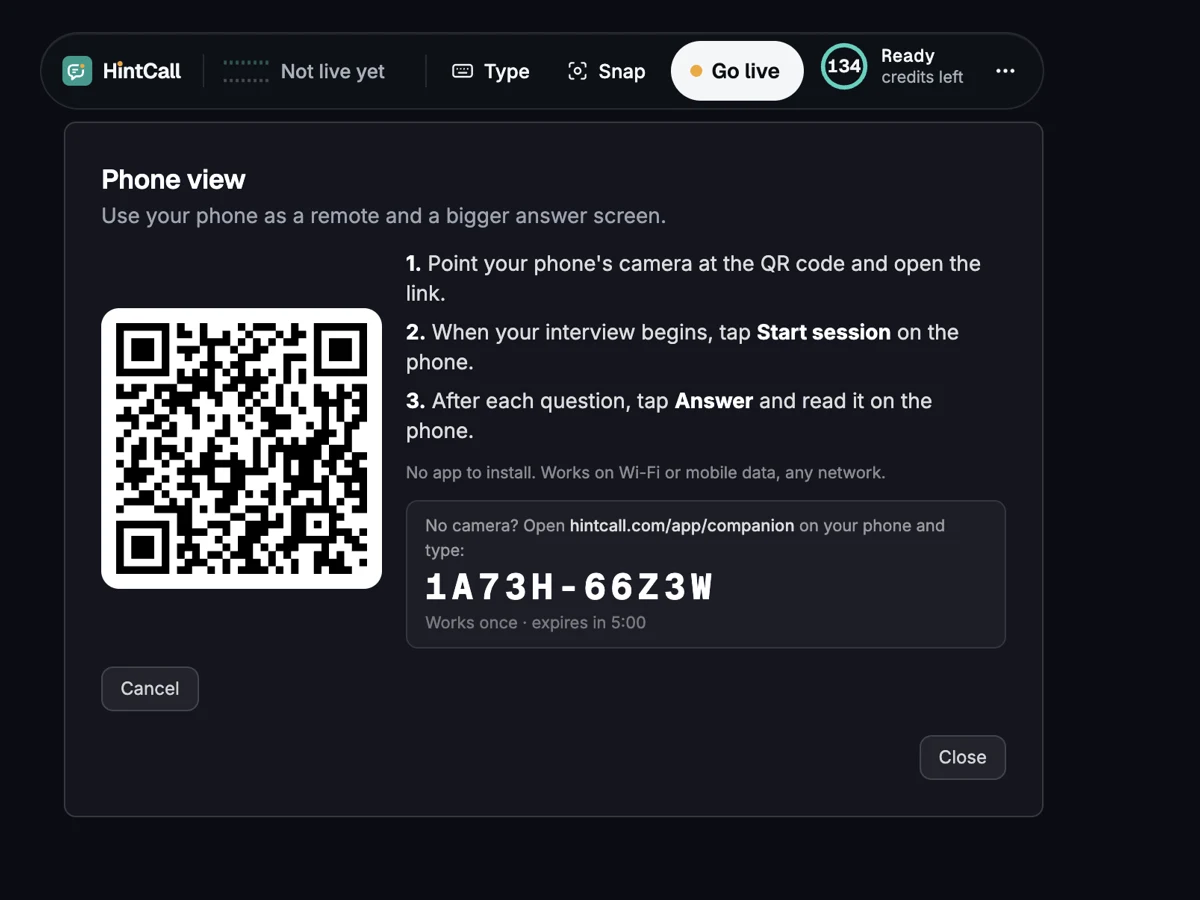
In the HintCall desktop app, open the ⋯ menu on the toolbar, choose Phone view, then Connect a phone.
- 2
Scan the QR code
Point your phone's camera at the QR code. No camera? Open hintcall.com/app/companion on the phone and type the 10-character code, like ABCDE-12345.
- 3
Run the session from your phone
Tap Start session, then Answer after each question. The answer appears on the phone in large text.
The buttons you need, in your hand
Each button on the phone runs the same action as the same button in the desktop app.
-
Start session
Starts the interview session on your laptop, the same as starting it in the app.
-
Interviewer
A live line with what the interviewer is saying right now, above your buttons.
-
Answer
Asks for an answer to the question you just heard. It appears on the phone as it is written.
-
Capture screen
Captures your laptop screen, for a coding problem or written question, and answers what is on it.
-
Stop
Shows while an answer is being written. Tap it to stop that answer.
-
End session
Ends the interview on your laptop. Phone view ends with it.
-
Jump to latest
Scrolled up to reread? One tap takes you back to the newest answer.
-
Disconnect phone
Disconnects only the phone. The interview keeps running on your laptop.
Read, trim and redo the answer from your phone
With the desktop app on version 0.2 or later, the phone gets these tools too. Older versions show the answer and the buttons above.
-
Confirm your details
When you tap Start session, the phone shows the Call prep details for this interview. If they are right, tap Details are correct, Start. To change one, use Call prep on the laptop.
-
Key points or Full answer
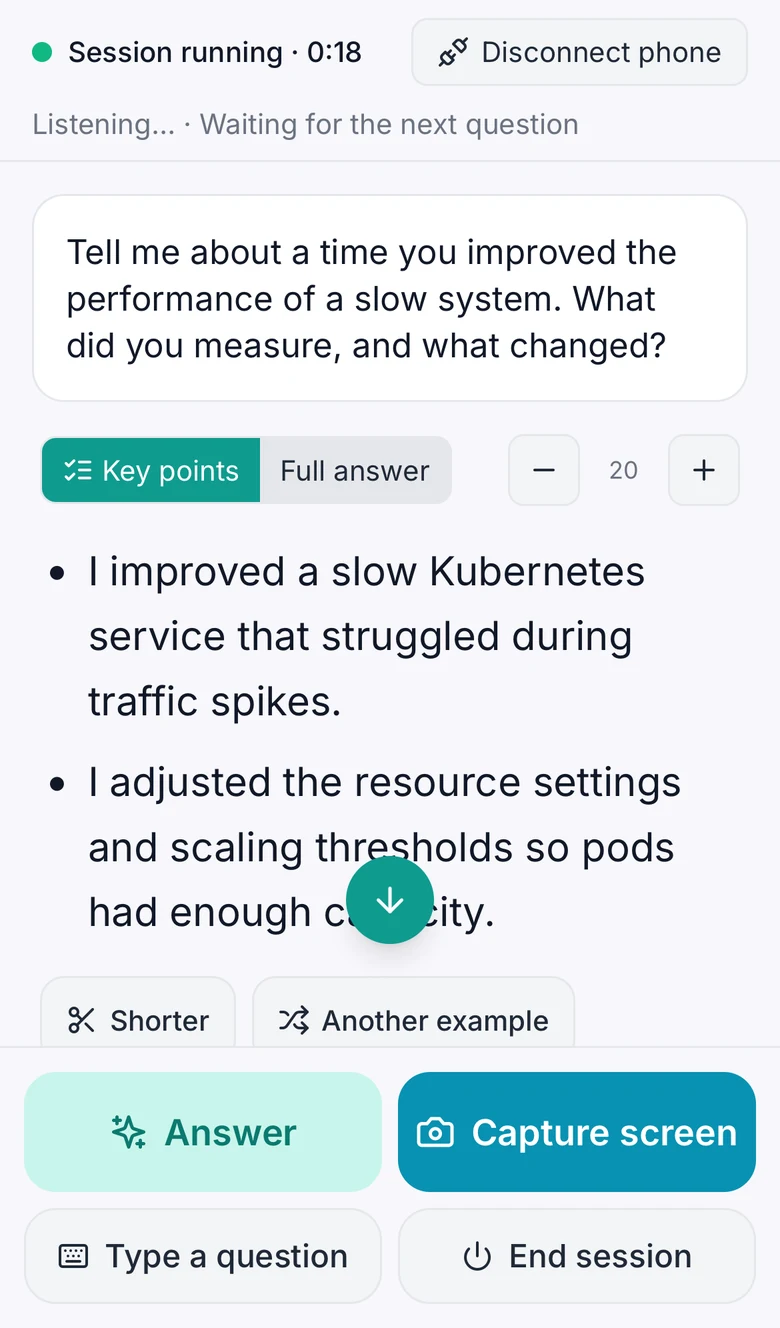
Key points shows one short line per part of the answer, for a quick glance. Full answer shows all of it. The phone remembers your choice.
-
Text size − and +
Make the answer text smaller or bigger. The phone remembers the size.
-
Shorter, Another example, Regenerate
Under any finished answer: a shorter version, a different example or solution, or a fresh answer to the same question.
-
Type a question
Got a question in the chat or by email? Type it on the phone, up to 500 characters, and the answer appears there.
-
Earlier answers
The answers from this interview, kept on this phone only, one tap away.
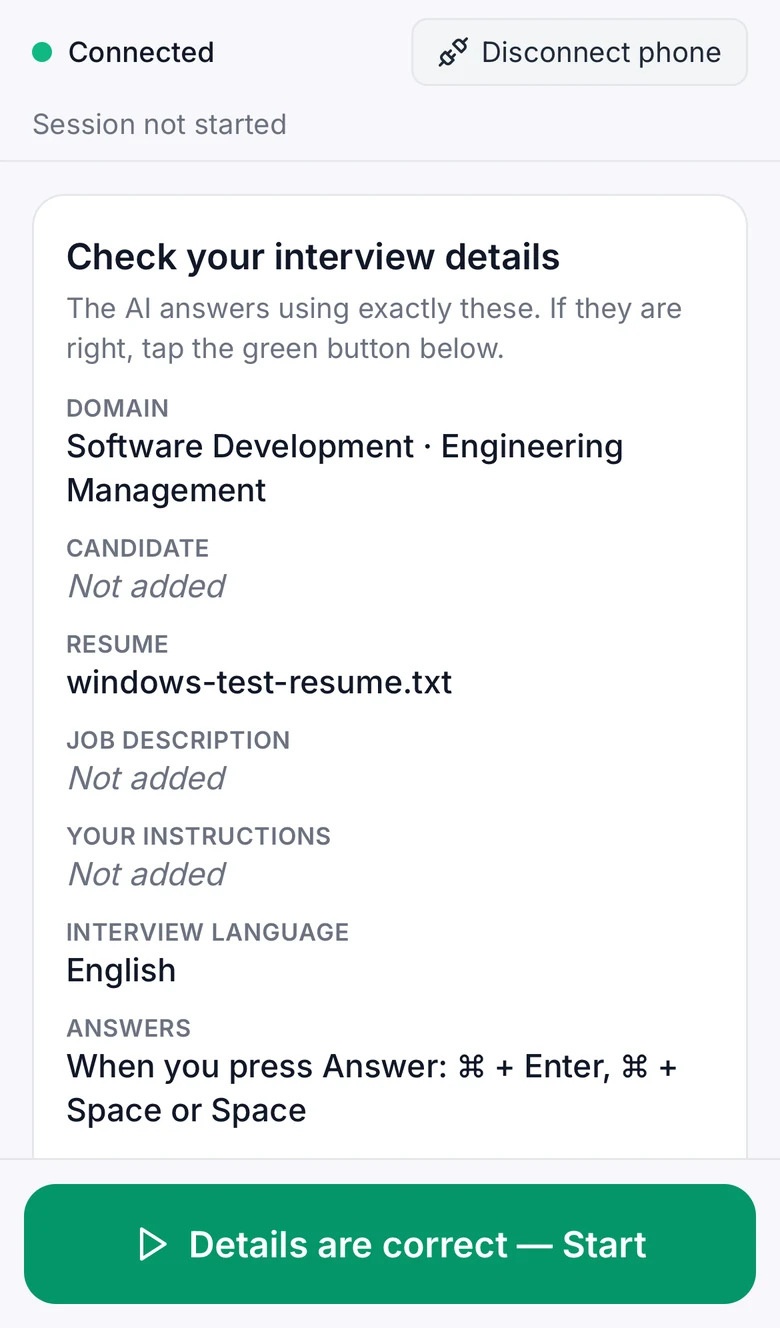
A bigger screen for the answer, a remote for the app
Read without squinting
The answer fills the phone screen in large text, as it is written. Code answers show in their own box. Switch to Key points for one line per part.
Your laptop stays on the call
Keep the video call on your laptop screen and run HintCall from the phone. Hide the HintCall window on the laptop if you want more room.
One tap, no shortcuts to remember
Start, Answer, Capture screen, End and the follow-ups are big buttons on the phone, so you do not need the keyboard during the interview.
Works with the phone you already have
Your phone
- Any iPhone or Android phone
- Its normal browser, such as Safari or Chrome
- Nothing to install and no sign-in on the phone
Your laptop
- The HintCall desktop app on Mac or Windows
- Signed in to your HintCall account
- Open it from ⋯ → Phone view on the toolbar
- Key points, follow-ups, Type a question and confirming details on the phone: HintCall 0.2 and later
Your connection
- Internet on both devices
- Wi-Fi or mobile data, no need to share a network
- Work or guest Wi-Fi blocking it? Switch the phone to mobile data
Encrypted between your laptop and phone
- Can someone else join?
- No. Each code works once, so only one phone can join a pairing. A code that is not used expires after 5 minutes.
- Is it encrypted?
- Yes. Messages between your laptop and your phone are encrypted with a key made from the one-time code. HintCall's servers only pass the encrypted data along.
- Is anything stored?
- Phone view does not save questions or answers on a server. Earlier answers live only in the phone's open page and are gone when you close it. Your normal interview history works the same as without the phone.
Do I need to install an app on my phone?
No. Phone view is a web page, hintcall.com/app/companion, that opens in your phone's browser when you scan the QR code. You do not sign in on the phone.
Do my phone and laptop need the same Wi-Fi?
No. Phone view works over the internet, so the phone can be on mobile data or a different network from your laptop.
Does Phone view cost extra?
No. It is part of the desktop app. A session uses credits the same way with or without the phone.
What happens if my phone sleeps or loses signal?
The interview keeps running on the laptop. After about 45 seconds without the phone, the laptop shows Phone not responding. Is its screen on? If Phone view ends while the HintCall window is hidden, the window comes back on your laptop by itself.
Can I use the laptop and the phone together?
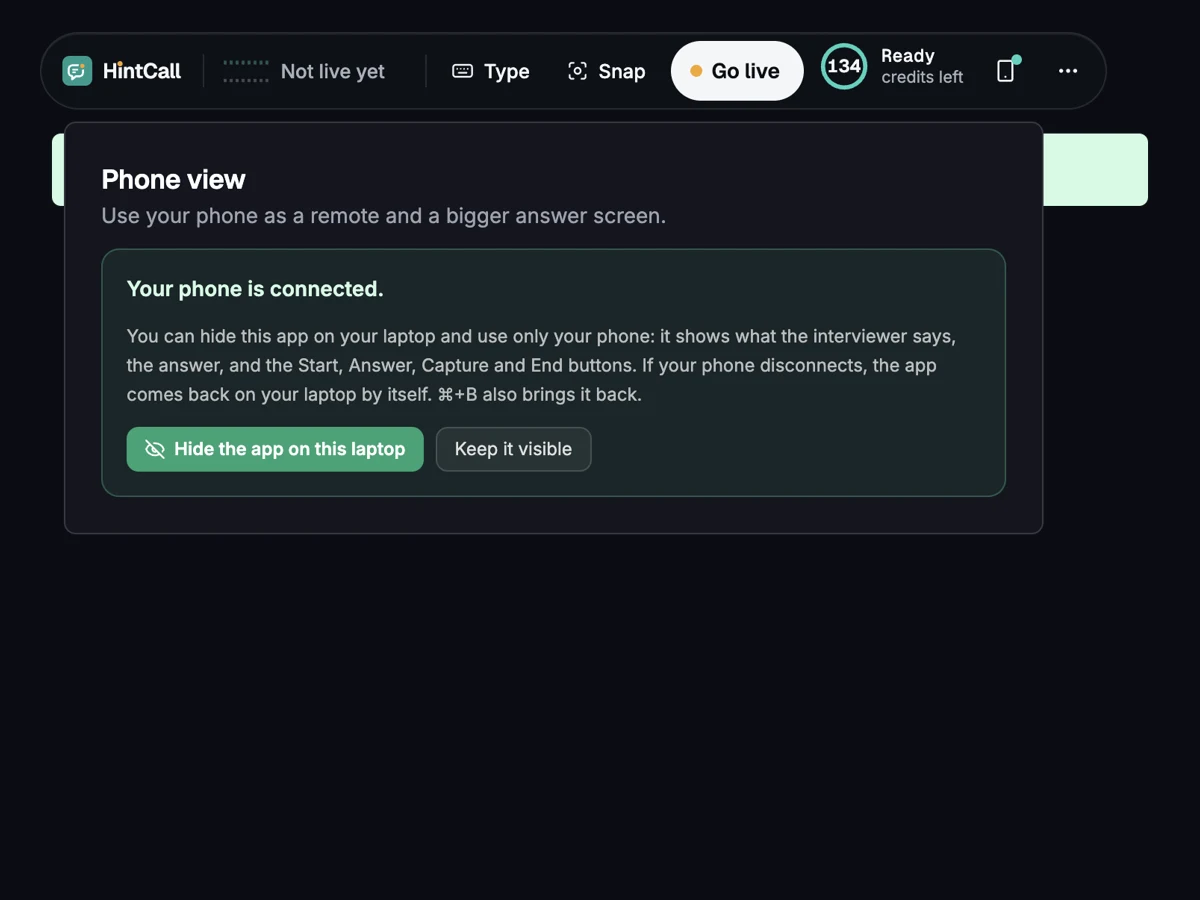
Yes. When the phone connects, choose Keep it visible to use both, or Hide the app on this laptop to use only the phone. Press Ctrl+B on Windows or ⌘+B on a Mac to show the app again.
What if the laptop app stops answering?
After about 2 minutes without word from the laptop, the phone shows Laptop not responding and asks you to check that the HintCall app is open and the laptop is awake.
What if my phone loses signal for a moment?
The phone reconnects by itself. A tap you make while it reconnects goes through as soon as it is back, if that takes no more than about 10 seconds; otherwise tap again.
Can I connect two phones?
No. One phone at a time. To switch phones, tap Disconnect and connect the new phone with a new code.
Try Phone view in your next session
Install the desktop app, open ⋯ → Phone view and scan the code.